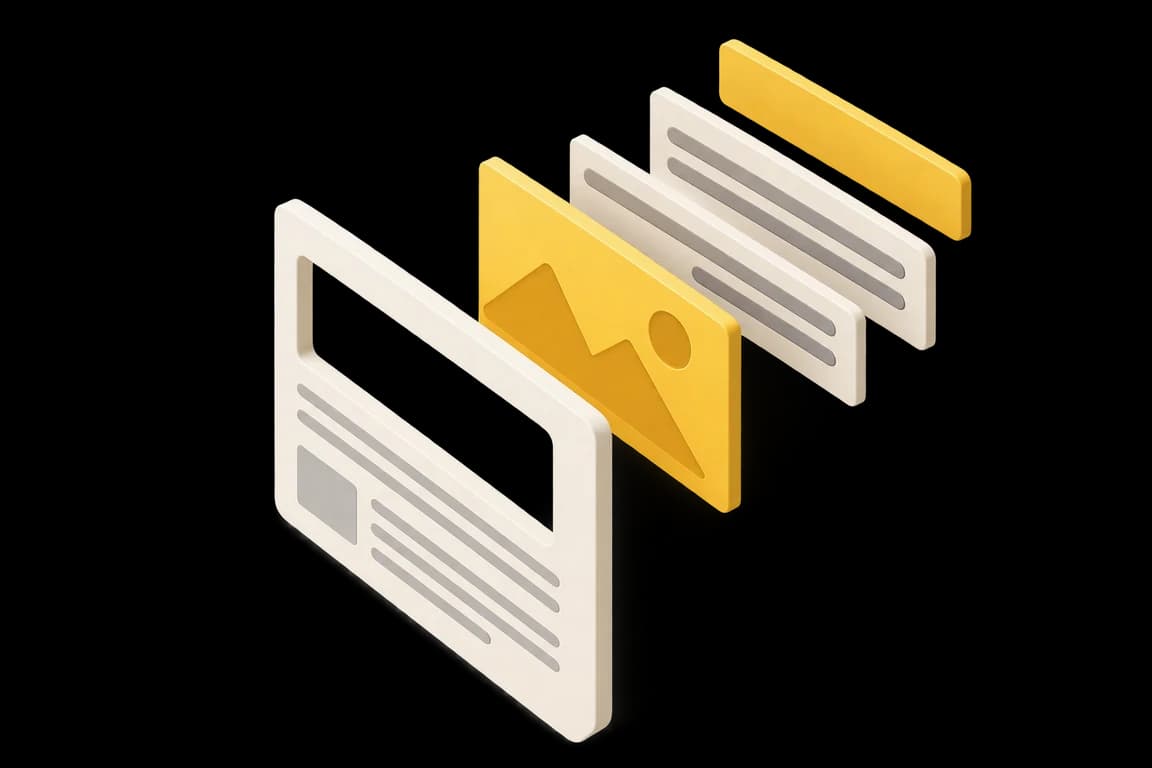
The flow replayed with sample data. Use ↻ to play it again.
Create images with AI, keep them organised in one library, and attach them to any page or article.
Each asset is stored with its dimensions and alt text, so the information SEO and accessibility need is present from the start and there is no hunting through external stock libraries. Generated images can be assigned straight into a media field.
The library acts as the shared store that connects the media-type fields of the structured content model with creatives from Design Studio, letting you reuse the same asset across landing pages and articles.
- Generate images with AI from a short prompt
- No hunting through stock image sites
- Attach to a media field on any page or article
- Reuse assets across pages and articles
How it works
- 1In an image block on an article or page, add an image by generating it with AI or uploading it.
- 2Check the stored dimensions and enter or refine the alt text.
- 3Search the shared media library by article title or alt text.
- 4Attach the image to a media field on another page or article to reuse it.
FAQ
Can we edit alt text later?
Yes. Alt text can be edited per image in the library, keeping SEO and accessibility information complete.
Do we still need external stock sites?
Images generated with AI are stored with dimensions and alt text, which cuts down time spent searching stock libraries.
Can one image be used on several pages?
Yes. The same asset can be reused across landing pages and articles.